
Getting started
SSS Retail Ops has three apps. Inventory is for your stock and buying. Point of Sale is for selling at the shop counter. People is for your staff, their pay and their work. You can use one, two or all three. This page shows you how to start.
▶Step by step in pictures: from sign-up to your first sale24 pictures. In each, an orange ring shows where to type or tap.Start →One account, three apps
You make one account with your name, email and a password. The same email and password open all three apps. You never sign up a second time.
- Inventory: products and their stock, purchases, suppliers, warehouses, and the stock history. Stock comes in only with a purchase (see How stock flows).
- Point of Sale: shops, counters, shifts, sales, receipts, the cash drawer and the end-of-day report.
- People: staff, contracts, leave, attendance, salary, departments and work boards.
The bar at the top of each app has links to the other two apps. You stay in the same business when you move.
- EN / বাংলা at the top changes the language. The app remembers your choice on that phone or computer.
- Guide in the top bar opens this guide for the page you are on.
- Sign out signs you out on that phone or computer. On a phone, these are in the menu (☰).
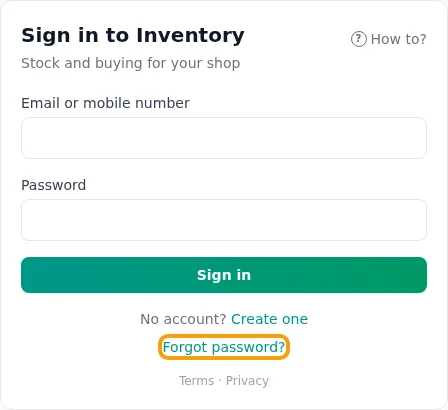
A sign-in lasts while you use it: a phone or computer not used for 7 days is signed out by itself. Choose a password nobody would guess. At least 8 characters. Not your name, mobile number or email. Not a common one like 12345678: the app refuses those. Three words together (green mango river) make a good one.
Create your business
A business is your shop in all three apps. It has one name and one currency. All its apps share the same team.
- Sign in to any app. The first time, you see Create your business.
- Under Your own business, type the business name.
- It says Money in taka (৳), in Bangladesh. Not right? Press Change and fix the currency, the country and the apps it uses.
- Press Create business. Now you are the owner in every app.
- The app also makes your shop, one warehouse for its stock and one cash counter. You can add products and sell straight away.
When the business uses Inventory and Point of Sale, the counter sells from your Inventory stock from day one (see Linking to Inventory).
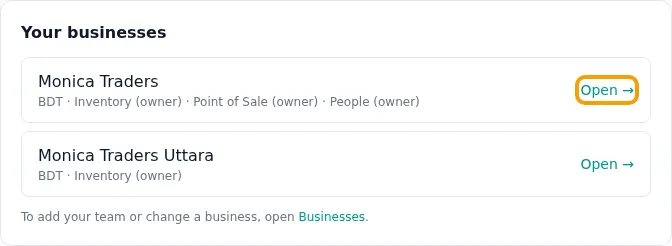
What next? Open Inventory. The Dashboard shows a short list: A place for your stock (already made: Shop),Add your products, Make your first sale. Press Start → on each. Or read Stock and then Shifts.
When you move between apps, you stay in the same business. For example, press Point of Sale in Inventory’s top bar. You go straight to Monica Traders’ counter. The business name and your role are at the top right. Press it to change to another business.
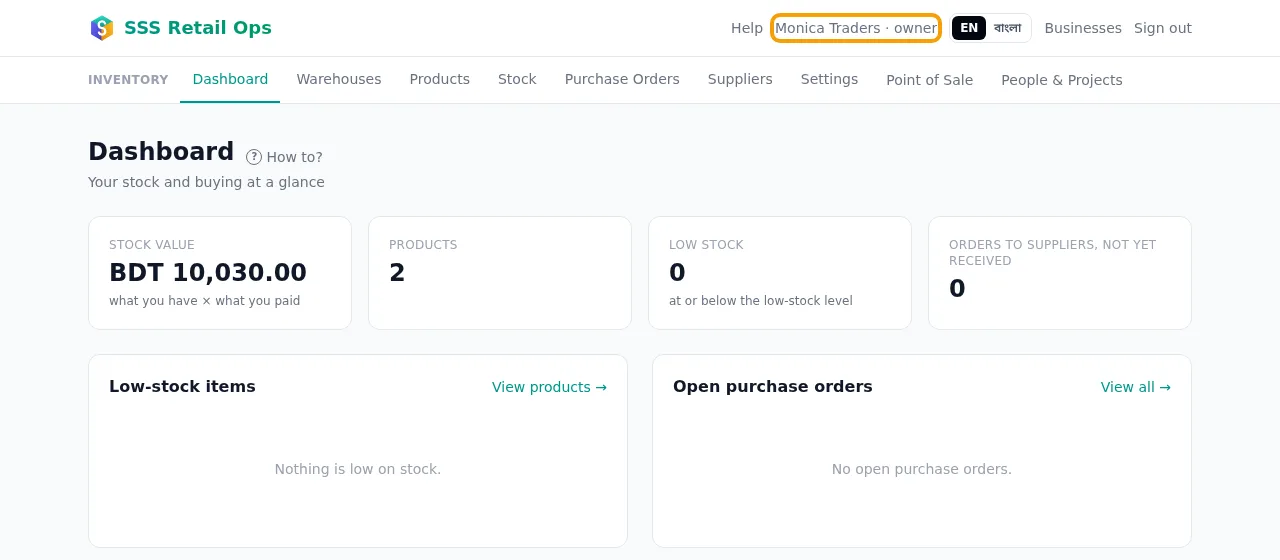
To change the name, currency or country:
- Press Businesses at the top.
- Press Edit on the business.
- Make the change. Press Save for every app.
Good to know
- The name, currency, country and time zone are the same in all three apps, and this is the one place to change them. Each app’s Settings shows them, with Change on Businesses → for the owner.
- If the business does not use an app yet, you see Add Inventory, Add Point of Sale or Add People instead of Open →.
Your pad: logo, address, phone
The pad is your letterhead. It is printed at the top of every receipt, contract, payslip and purchase order.
- Right after you create the business, the app shows Your pad. Later, open it from Businesses → Pad (letterhead).
- Press Add a logo and pick a photo or file of your logo. It is made small for printing.
- Type the address and phone. Email, website, BIN or trade licence are optional.
- Choose the logo on the left or in the middle, and a colour. The preview on the right shows a page and a receipt.
- Under Receipts, choose your receipt paper: an 80 mm or 58 mm counter printer roll, or an A4 page for a bill. Add a note for the bottom of each receipt if you like.
- Press Save pad. Every printout uses it from now on. Only the owner can change it.
Invite your team
You add each person once, on the Businesses page. They do not need an account first.
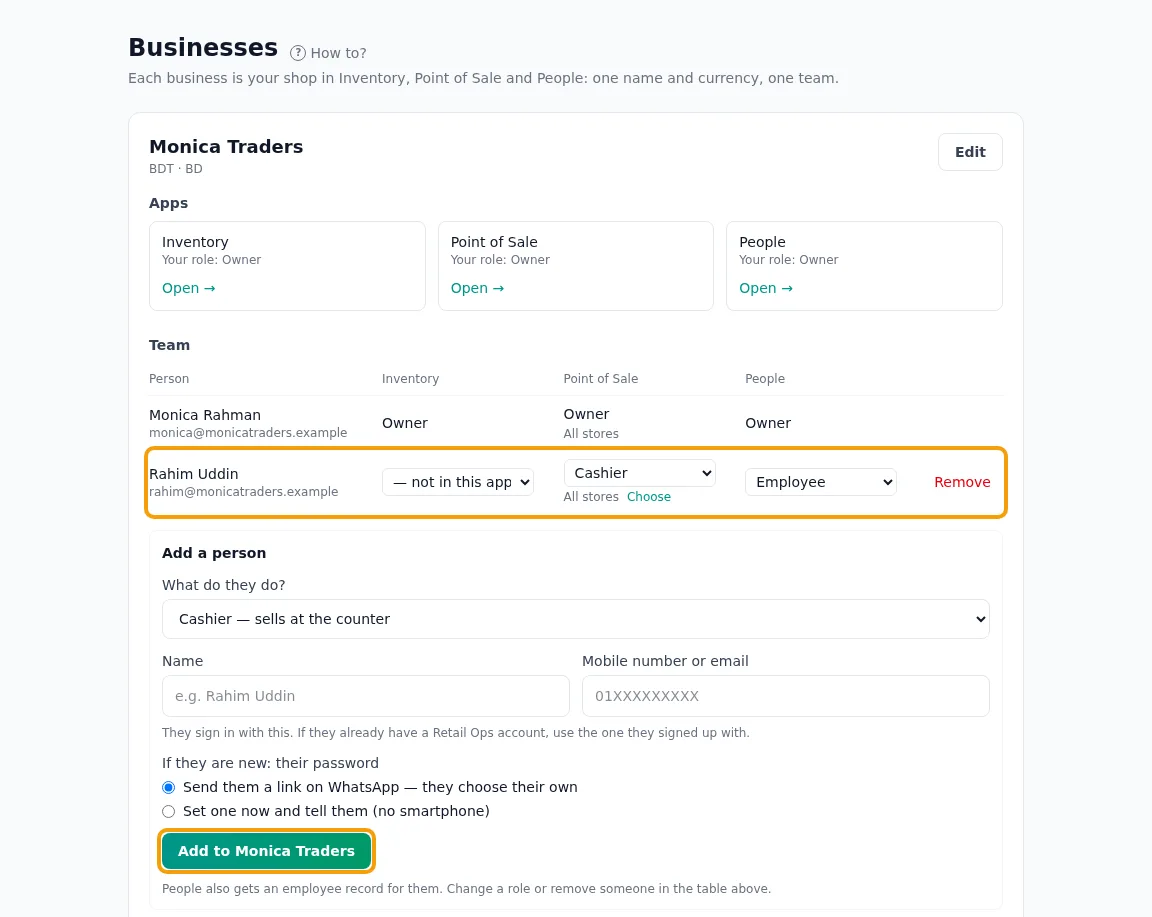
- Press Businesses at the top of any app.
- Under Add a person, pick What do they do?, for example Cashier — sells at the counter. (Choose roles myself lets you pick a role per app; — not in this app means no role there.)
- Type their name, and their mobile number or email.
- New to Retail Ops? Pick Send them a link on WhatsApp, or Set one now and tell them and type a password.
- Press Add to Monica Traders. The button shows your business name.
People also makes a staff record for them. If you already made one with that mobile number or email, it links to it.
Good to know
- People see only the businesses they are added to. In each business, they see only the apps where they have a role.
- To change someone’s role, pick a new role next to their name in the team list. Pick — not in this app to take them out of one app.
- To take someone out of the whole business, press Remove at the end of their row. The app asks: Remove or Keep.
- Who may add, change and remove people is a permission: Add, change and remove team members (see Roles).
- In Point of Sale, press Choose under someone’s role to pick the stores they work in. They then open shifts and sell only there. With no store picked, they can work in every store.
- When you remove someone, their old receipts, payslips and other records stay. They belong to the business. Removing someone from People keeps their staff record.
- Only an owner can make someone else an owner. Each app always has at least one owner.
- When a staff member leaves, also press End job for them in People (see Employees).
Roles: who can do what
Each app has its own roles. The owner decides what each role may do and see. Open Businesses and go toRoles and permissions. Only an owner sees it.
- There is a row for each thing a person can do, and a column for each role. Tick a box to allow it. The change works within a few seconds.
- Some rows say how much someone may see: No, Their own, Their stores or Everyone. For example, a cashier with Their own receipts sees only the sales from shifts they opened.
- The owner may always do everything. Some things stay with the owner only: payment gateway keys, the link between Point of Sale and Inventory, renaming or putting businesses together, and making someone an owner.
- Press Reset under a role to go back to the starting choices below.
Your own roles
Press + New role, give it a name (for example “Store supervisor”) and pick a role to start from. Then change its ticks. You can give it to people like any other role. You can rename it, or delete it when nobody has it.
The starting choices
| Role | App | What they can do at the start |
|---|---|---|
| Owner | All three | Everything. |
| Manager | Inventory | Everything except the few owner-only things. |
| Staff | Inventory | See and edit products, warehouses and suppliers. See cost prices. Purchase stock and receive goods; transfer stock; stock correction and write-off. Send and cancel orders. Cannot make anything inactive, change settings or the team. |
| Viewer | Inventory | Only look: products, stock, warehouses, suppliers and purchases. Does not see cost prices. |
| Manager | Point of Sale | Everything except the few owner-only things. |
| Cashier | Point of Sale | Open a shift and sell. Put money in or take it out of the drawer on their own shift. Cancel their own unpaid sales. Email receipts. See and add customers and collect what they owe. See only their own shifts, receipts and shift reports. No selling on due, refunds or setup. |
| Salesperson | Point of Sale | Make the cart. Does not take payment. Sees only their own receipts. |
| HR manager | People | Everything except the few owner-only things. |
| Employee | People | See the staff list. See only their own salary, contract, leave, attendance and payslips. Ask for their own leave. Check in with the QR code. Add, edit and move tasks, and comment. |
| Viewer | People | See the staff list and projects. Their own leave, attendance and payslips. No salaries. Cannot change anything. |